
3D Printer File Formats Explained: STL, OBJ, 3MF, and More

Confused by 3D Printer File Formats? STL, OBJ, and 3MF each store different data, and picking wrong wastes prints. Learn which 3D printing file type fits your project. Dive in.
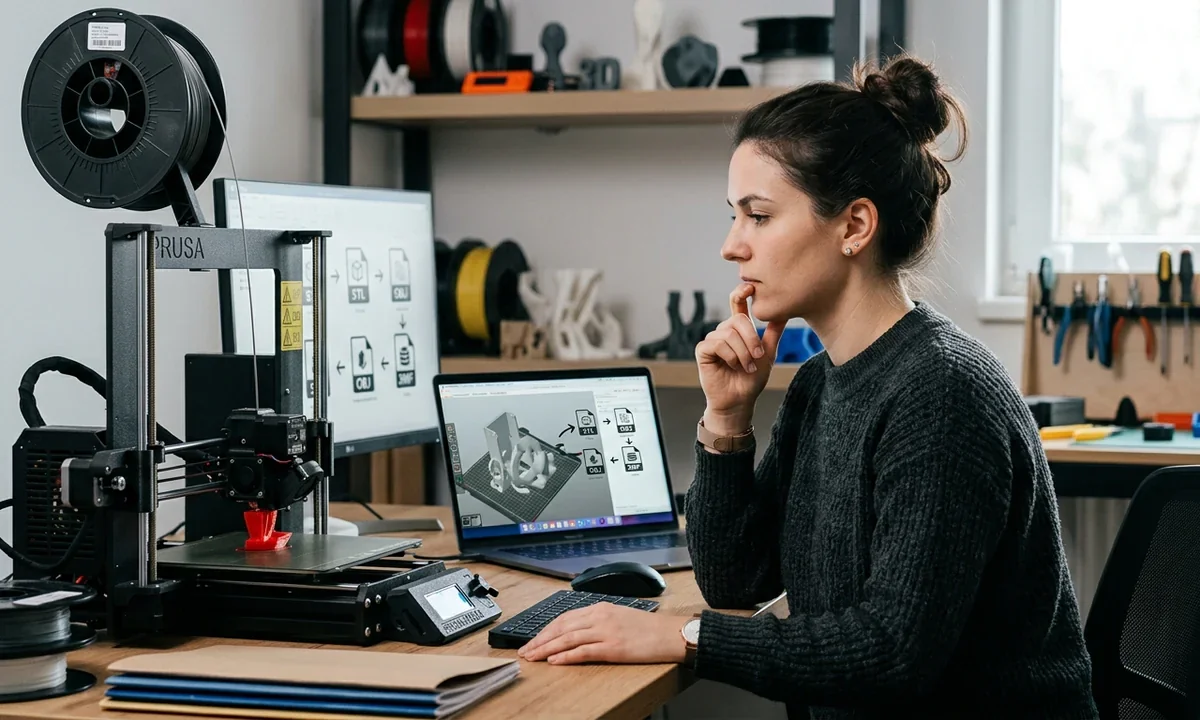
A flawless model can still produce a disappointing print if the wrong file format strips away critical information before the slicer ever sees it. The biggest difference between STL and modern formats such as 3MF or OBJ is simple: STL stores geometry only, while 3MF and OBJ can preserve additional information such as color, textures, materials, units, and other metadata. That distinction determines whether your printer receives only a shell of triangles or a much richer description of the object.
Anyone who has opened a carefully prepared model only to discover that its colors disappeared, its scale changed, or its multi-material assignments vanished has already experienced the consequences of choosing the wrong format. The problem rarely starts inside the printer. It starts with the export button.
For hobbyists printing replacement brackets on an FDM machine, an STL file often works perfectly. A designer preparing a textured character for full-color printing faces a different challenge entirely. Likewise, owners of Bambu Lab, AMS systems or Prusa MMU setups benefit from formats that preserve material assignments instead of forcing them to recreate those settings after every import.
The file format sits between your design software and your slicer. Choose wisely, and your workflow remains predictable. Choose poorly, and valuable information disappears long before G-code reaches the printer.
This guide explains what today's most common 3D Printer File Formats actually store, why those differences matter, and when STL, OBJ, 3MF, and several specialized alternatives make the most sense for different printing workflows.
3D printer file formatsWhat a 3D File Really Stores
Every printable model follows the same broad path: a designer creates geometry inside CAD or modeling software, exports that design into a transferable file format, imports it into a slicer, and finally generates printer-specific G-code. The file format occupies the critical middle step because it determines which parts of the original design survive the journey.
Think of the file as a shipping container rather than the product itself. Two containers may hold the same object, yet one includes labels, handling instructions, dimensions, and inventory records while another contains nothing but the item. The physical object remains identical, but the receiving warehouse gains very different amounts of information.
Most consumer 3D Printing File Types describe objects as polygon meshes. A mesh represents a surface by connecting thousands, or sometimes millions, of tiny triangles. Each triangle consists of three vertices positioned in three-dimensional space. Together those vertices define the object's outer shape.
Normals provide another layer of information. A normal indicates which direction each face points, allowing software to distinguish the inside from the outside of a model and calculate shading correctly. Incorrect normals can confuse repair software and occasionally create slicing problems.
Mesh quality depends heavily on triangle density. Too few triangles produce visibly faceted curves, while excessive counts inflate file sizes and slow editing without improving print quality beyond the printer's physical resolution. Export settings therefore matter almost as much as the format itself.
Not every format stops with geometry. Some also preserve vertex colors, texture maps, material definitions, measurement units, object hierarchies, printer settings, manufacturing metadata, and even thumbnails for project previews. Modern workflows increasingly rely on those extra layers because they eliminate repetitive setup work after every export.
Printability introduces another requirement. A mesh should remain watertight, meaning every edge connects cleanly without gaps or holes. Non-Manifold geometry breaks that rule by creating impossible surfaces such as floating edges or overlapping faces. Most slicers attempt automatic Mesh Repair, but they cannot always recover severely damaged models.
Once the slicer receives a valid model, it converts the mesh into individual toolpaths according to layer height, nozzle diameter, infill, supports, and dozens of other settings. Those instructions become G-code, which finally directs the printer's motors, heaters, and extrusion system. At that stage, missing colors, incorrect scale, or lost material assignments cannot be recovered because the information disappeared earlier during file exchange.
3D printer file formatsSTL, OBJ, and 3MF Compared
Three formats dominate desktop additive manufacturing today, yet they solve different problems. Understanding those differences prevents unnecessary conversions and helps preserve information throughout the workflow.
STL remains the oldest and most widely supported option. Developed during the late 1980s for stereolithography systems, it represents only a triangle mesh. No colors, materials, textures, units, or printer settings travel with the file. Because STL stores pure geometry, almost every slicer, CAD package, repair utility, and online repository accepts it without hesitation. That universal compatibility explains why STL continues to serve as the industry's fallback despite its limitations.
Its simplicity creates drawbacks. Exporting a colored scan or a multi-material assembly as STL immediately discards every attribute except the surface triangles. Scale also becomes ambiguous because STL contains no mandatory unit definition. One application may interpret dimensions as millimeters while another assumes inches unless the user specifies otherwise.
 Credit © Pick3DP
This image illustrates the differences between STL, OBJ, and 3MF file formats in 3D printing. STL focuses on surface geometry, OBJ includes color and texture, while 3MF supports complex data like materials and assembly.
OBJ expands beyond geometry. Alongside the mesh, it references an accompanying MTL file that stores material definitions and can link external texture images. Designers preparing realistic visualizations, textured scans, game assets, or full-color printing projects often prefer OBJ because it preserves appearance far better than STL. The trade-off involves file management. Moving an OBJ without its associated MTL file or texture images frequently breaks the model's visual information.
3MF addresses many longstanding workflow frustrations. Instead of scattering information across multiple files, it packages geometry, units, materials, colors, object relationships, metadata, thumbnails, and manufacturing settings into a single compressed archive based on XML. Modern slicers can reopen a 3MF project while retaining build orientation, support placement, paint operations, and printer profiles, depending on the software that created it.
For everyday FDM printing, 3MF increasingly serves as the preferred working format. Cura, PrusaSlicer, OrcaSlicer, and Bambu Studio all support it extensively, allowing users to exchange richer project data without rebuilding their setup from scratch. STL still matters because nearly every online repository distributes models in that format, and countless legacy applications depend on it.
The practical decision becomes straightforward. Choose STL when maximum compatibility outweighs every other consideration. Choose OBJ when texture fidelity matters. Choose 3MF when preserving an entire printing workflow matters more than universal legacy support.
The comparison below highlights the strengths and compromises of each major format.
| Technology | Pros | Cons | Best Use Case | Typical Cost |
|---|---|---|---|---|
| STL | Universal compatibility, compact, simple | Geometry only, no units, no colors | Standard single-color FDM models | Free |
| OBJ | Supports textures, colors, materials | Multiple companion files, larger projects | Textured scans and color models | Free |
| 3MF | Stores geometry, units, metadata, materials, project settings | Older software may not support every feature | Modern multi-material and professional slicing workflows | Free |
3D printer file formatsWhich Format for Which Job
The right file format depends less on the printer than on the information you need to preserve between design and slicing. If the model consists of a simple mechanical bracket printed in one material, STL remains perfectly adequate. Once colors, textures, multiple materials, or reusable print settings enter the workflow, richer formats become much more valuable.
Single-color functional parts represent the classic STL use case. A replacement knob, mounting bracket, calibration cube, or enclosure typically contains only geometry. Every major slicer accepts STL files, and almost every online repository distributes models in that format. Compatibility remains its greatest advantage.
OBJ excels when visual appearance matters as much as shape. Photogrammetry scans, sculpted characters, museum artifacts, and decorative models often include texture maps that cannot survive an STL export. Designers preparing models for color-capable printers or visualization software generally benefit from OBJ because it preserves both geometry and surface appearance.
Modern multi-material desktop printing strongly favors 3MF. Owners of systems such as the Bambu Lab AMS or Prusa MMU frequently assign different filaments to separate bodies or painted regions. A properly saved 3MF file keeps those assignments together with build orientation and, in many slicers, support placement. Reopening the project later becomes far less tedious.
Engineering workflows introduce another consideration. CAD applications frequently export STEP files during collaboration because STEP preserves parametric geometry better than mesh formats. Once the design reaches the slicing stage, however, users normally export a mesh format such as 3MF or STL.
The following table summarizes the most common choices.
| Printing Scenario | Recommended Format | Why It Fits |
|---|---|---|
| Single-color FDM functional part | STL | Maximum compatibility with all slicers |
| Textured scan or artistic model | OBJ | Preserves textures and material references |
| Multi-color or multi-material print | 3MF | Stores material assignments and project data |
| Reusable slicer project | 3MF | Retains supports, orientation, and print settings |
| CAD collaboration before slicing | STEP | Maintains editable engineering geometry |
No single format dominates every situation. For everyday hobby printing, STL still works remarkably well. For workflows that depend on preserving anything beyond geometry, 3MF has become the practical default because it reduces repeated setup work while keeping all related information inside one portable file.
3D printer file formatsAMF, STEP, PLY, and G-code
STL, OBJ, and 3MF receive most of the attention, but several other file formats still serve important roles within digital manufacturing. Each addresses a different stage of the design-to-print workflow rather than competing directly with the mainstream formats.
AMF, short for Additive Manufacturing File Format, appeared as an attempt to replace STL with a richer standard. It supports curved triangles, multiple materials, colors, lattices, units, and metadata. On paper, AMF solved many of STL's historical limitations. Industry adoption never reached the expected level because software vendors gradually embraced 3MF instead, leaving AMF with relatively limited ecosystem support despite its capable specification.
STL vs G-code Explained for Beginners (3D Printing Basics) - Source (Youtube@Austin's Lab)
STEP occupies a completely different category. Unlike STL or OBJ, STEP stores precise mathematical CAD geometry instead of polygon meshes. Engineers use it to exchange editable solid models between applications such as SolidWorks, Autodesk Fusion, Siemens NX, and CATIA. Designers can modify dimensions, features, and assemblies after import, something mesh formats cannot easily provide. Before printing, however, the CAD model still requires conversion into a mesh that the slicer can process.
PLY originated within the computer graphics and 3D scanning communities. It stores polygon meshes together with optional vertex attributes such as colors, normals, and confidence values collected during scanning. Researchers and reverse engineering specialists often encounter PLY files because many structured-light and laser scanners export them by default. Consumer slicers support PLY less consistently than STL or OBJ, so conversion frequently becomes necessary.
G-code differs fundamentally from every design format discussed so far. It is not a modeling file. Instead, it contains machine instructions that tell a specific printer where to move, how much filament to extrude, what temperatures to maintain, and when to activate cooling fans or tool changes. A G-code file generated for one printer configuration may fail on another because nozzle size, firmware, bed dimensions, and hardware capabilities differ.
Think of the workflow as a chain. STEP describes editable engineering intent. STL, OBJ, 3MF, AMF, or PLY describe printable geometry in different ways. The slicer converts that information into G-code, and the printer executes those commands one line at a time.
3D printer file formatsEvery Format at a Glance
Comparing every major format side by side reveals why no single option replaces all the others. Some prioritize compatibility, others preserve rich project information, while engineering formats focus on editability rather than printing.
| Format | Geometry | Color / Texture | Materials | Metadata & Units | Compression | Compatibility |
|---|---|---|---|---|---|---|
| STL | Yes | No | No | Very limited | No | Excellent |
| OBJ | Yes | Yes | Basic via MTL | Limited | No | Very good |
| 3MF | Yes | Yes | Yes | Extensive | Yes | Excellent in modern software |
| AMF | Yes | Yes | Yes | Extensive | Optional | Moderate |
| STEP | Parametric solids | No | No | Engineering metadata | No | Excellent for CAD |
| PLY | Yes | Vertex colors | Limited | Scan attributes | No | Moderate |
| G-code | Toolpaths only | No | Printer dependent | Machine instructions | No | Printer specific |
Looking across these characteristics, STL still wins for universal compatibility. OBJ remains the strongest option for textured mesh exchange. STEP dominates engineering collaboration because editable geometry survives the transfer. G-code stands alone because it represents manufacturing instructions rather than a reusable design.
For most desktop printing workflows in 2026, 3MF offers the best overall balance. It combines modern metadata support, reliable unit handling, material definitions, compression, and broad compatibility with today's leading slicers. Users who regularly reopen projects also benefit from preserved print settings that STL simply cannot store.
Even so, deleting STL from a workflow would be premature. Thousands of repositories, repair tools, and legacy applications still depend on it, making STL the safest fallback whenever compatibility outweighs advanced features.
3D printer file formatsWhat Your Slicer Will Actually Open
Most modern slicers accept several mesh formats, but they do not treat every format equally. Opening an STL, OBJ, or 3MF file may produce the same visible model on the build plate, yet the amount of preserved information differs dramatically. Understanding those differences saves time and prevents frustrating surprises after import.
Ultimaker Cura continues to support STL as its universal input format while also providing strong support for 3MF and OBJ. If you import a 3MF project created in Cura, the software can restore many project-specific settings, including model placement and build configuration. Importing the same object as STL requires recreating those settings manually because only the geometry survives.
PrusaSlicer follows a similar philosophy. STL remains fully supported, but 3MF has become the preferred project format because it stores print profiles, support painting, modifiers, object grouping, and other workflow information. Saving active projects as 3MF makes collaborative work and future revisions much easier.
Bambu Studio extends this concept further. Multi-color painting, AMS filament assignments, object orientation, support blockers, and many slicing parameters remain attached to the project when saved as 3MF. Users printing complex multi-material models quickly notice how much setup time this eliminates compared with repeatedly importing STL files.
Resin slicers such as Lychee Slicer and Chitubox primarily focus on geometry because monochrome resin printing rarely depends on texture information. Both applications readily import STL files, while OBJ and 3MF support varies depending on the software version and the features being used. Even when 3MF imports successfully, resin workflows often rely less on its advanced material metadata than FDM environments.
CAD software also influences file selection. Autodesk Fusion, SolidWorks, Onshape, FreeCAD, and similar engineering platforms commonly export STL, OBJ, and increasingly 3MF directly from the design workspace. Engineers exchanging editable designs usually share STEP files first, then generate a printable mesh only after the design reaches its final state.
File conversion remains common. A downloaded STL can easily become a 3MF project after slicing, while an engineering STEP model converts into a printable mesh during export. Converting in the opposite direction rarely restores lost information. Once colors, units, textures, or material assignments disappear during an STL export, no converter can reconstruct them automatically.
3D printer file formatsFile Mistakes That Ruin Prints
Most failed prints blamed on the printer actually originate much earlier in the workflow. A poor export choice, damaged mesh, or overlooked scaling error can waste hours of printing time even when the machine performs perfectly.
Exporting a colored model as STL ranks among the most common mistakes. The resulting file preserves only triangles, so every painted surface, texture map, and material assignment disappears immediately. If the project depends on appearance or multiple materials, export as OBJ or 3MF instead.
Incorrect units create another frequent problem. Some CAD programs model in inches while many slicers expect millimeters. Because STL contains no standardized unit information, a 50 mm part can suddenly appear as a 50 inch object or shrink to miniature size. Modern 3MF files include explicit units, greatly reducing this risk.
Non-Manifold geometry continues to challenge beginners and experienced designers alike. Floating faces, overlapping shells, internal surfaces, and open edges prevent the slicer from identifying a proper solid. Many repair utilities automatically correct minor issues, but severe defects often require returning to the original CAD or modeling software.
Triangle resolution deserves careful attention. Exporting with an extremely coarse mesh produces visible flat spots on cylinders, spheres, and curved surfaces. Exporting with millions of unnecessary triangles creates enormous files that slow editing without producing a visibly smoother print on a standard desktop printer. A balanced export tolerance generally delivers the best combination of accuracy and efficiency.
Another overlooked issue involves missing companion files. OBJ relies on associated MTL files and external texture images. Copying only the OBJ file to another computer often removes all color information because the supporting files remain behind. Keeping every related file together prevents this problem.
Before exporting any printable model, perform a quick sanity check:
- Confirm the measurement units.
- Check that the mesh is watertight.
- Remove duplicate or floating geometry.
- Verify that triangle density matches the printer's capabilities.
- Choose the format that preserves every feature the project requires.
- Open the exported file in the target slicer before starting a long print.
Those few minutes frequently prevent wasted filament, failed builds, and unnecessary troubleshooting sessions.
3D printer file formatsPicking the Right File, Fast
Selecting the correct file format becomes much simpler once each format's purpose is clear. STL remains the safest option whenever maximum compatibility matters and the model contains nothing beyond printable geometry. That explains why it still dominates online repositories despite its age.
OBJ fills an important niche by preserving colors and textures that STL cannot represent. Artists, scanning specialists, and designers preparing visual models continue to rely on it, although managing multiple companion files requires extra care.
For most modern desktop printing workflows, 3MF offers the strongest overall balance. It stores geometry, measurement units, materials, metadata, and, in many slicers, complete project settings inside a single compressed package. Reopening a complex print days or weeks later becomes dramatically easier because the workflow survives alongside the model.
STEP belongs earlier in the engineering process rather than at the printer, while G-code belongs at the very end after slicing. Each serves a distinct purpose instead of competing with STL, OBJ, or 3MF.
A practical rule works for nearly every situation. Start with 3MF whenever your software supports it. Fall back to STL only when compatibility with older tools or public repositories takes priority. Reserve OBJ for textured models and STEP for CAD collaboration before mesh export. Following that simple approach eliminates many of the file-related problems that interrupt successful 3D printing.
Industry analyst with a PhD in Materials Engineering and 12+ years tracking the global digital fabrication market. Covers 3D printing, 3D scanning, CNC machining, laser machining, and 3D modeling through data-driven guides and market news.